Orb
A home screen for Android that you talk to. Hold the side button in any app and ask; Orb reads your messages, answers questions about what's on screen, and opens or works your apps for you. Swipe up, or say “show my apps”, to see every app you have.
Android 12 or newer. Built for the Galaxy Z Fold and Motorola Razr; works on most Android phones. Orb doesn't come from a store yet, so Android warns you during install. Each step below says what you'll see.
Install on your phone (about 10 minutes)
1. Let your phone install it
Samsung: Settings › Security and privacy › Auto Blocker › turn it off. You can turn it back on after step 2 (and off again for each update). Motorola, Pixel and others: nothing to do yet.
2. Download and install
- On the phone, in Chrome, tap Download orb.apk above.
- If Chrome says the file "can be harmful", tap Download anyway.
- Open the download. Android asks to let Chrome install apps: tap Settings, turn on Allow from this source, then go back.
- Tap Install. If Google Play Protect doesn't recognize the app, tap More details › Install anyway. Leave Play Protect itself on.
3. Set Orb up
Open Orb. It shows a short list of things to turn on. Tap each one:
| On Orb's list | What happens |
|---|---|
| Allow the microphone | Android asks. Tap While using the app. |
| Let Orb see notifications | Opens Notification access. Turn Orb on. If it's grayed out or says "Restricted setting", see step 4. |
| Let Orb search your texts | Android asks to allow SMS. Tap Allow. |
| Connect your Gmail | For now this only works for invited testers; skip it otherwise. |
| Turn on the Orb button and app control | Opens Accessibility. Tap Orb, then turn it on. If it's restricted, see step 4. |
| Make Orb your home screen | Android asks which home app to use. Pick Orb. |
4. "Restricted setting"
Android blocks apps installed from the web from reading notifications or using Accessibility until you say so. Once:
- Try to turn the setting on. Android says it's restricted. Tap OK.
- Settings › Apps › Orb › ⋮ (top right) › Allow restricted settings, and confirm.
- Back in Orb, tap the item again.
5. Give Orb its brain
Long-press the date on Orb's home screen to open Tune. Under Thinking, tap Get a key, make a key in the Claude Console, copy it, and tap Paste key. Orb stores it encrypted on your phone. Claude bills your own account; Tune shows today's spending and lets you set a daily limit. Without a key Orb still handles simple commands.
6. Call Orb from any app
Samsung: Settings › Apps › Choose default apps › Digital assistant app › pick Orb, and turn on Use screen and app data. Then Settings › Advanced features › Side button › Long press › Digital assistant.
Motorola: Settings › Apps › Default apps › Digital assistant app › pick Orb, and turn on Use text from screen. Then Settings › Gestures › Power key › Press & hold › Digital assistant.
Tune › What I can reach shows these steps for your phone too.
Set up a new or reset phone from a QR code
On a phone that's at its welcome screen (new, or just reset), Orb can be installed as the phone's device manager. Orb is then installed, given its permissions and made the home screen automatically, with no Auto Blocker, unknown-apps or restricted-settings steps. You still turn on notifications, the Orb button, the assistant and Gmail yourself.
- Setup from a QR code only works at the welcome screen, so that phone must be reset, which erases it. Back it up first (see Keep your stuff). A brand-new phone has nothing to lose.
- Coming from an iPhone to a non-Samsung phone? Read Moving in first: the usual iPhone transfer happens during normal setup, which the QR code skips.
- The phone will say "This device is managed by your organization." Orb uses this only for the items above. It can't and doesn't lock, wipe, track or restrict your phone.
- To stop being an Orb phone you have to reset it again. Uninstalling Orb isn't allowed on a managed phone.
- Turn the phone on (or reset it) so it shows the welcome screen.
- Tap the same empty spot on the welcome screen 6 times. A QR code reader opens (some phones ask for Wi-Fi first).
- Scan this code:
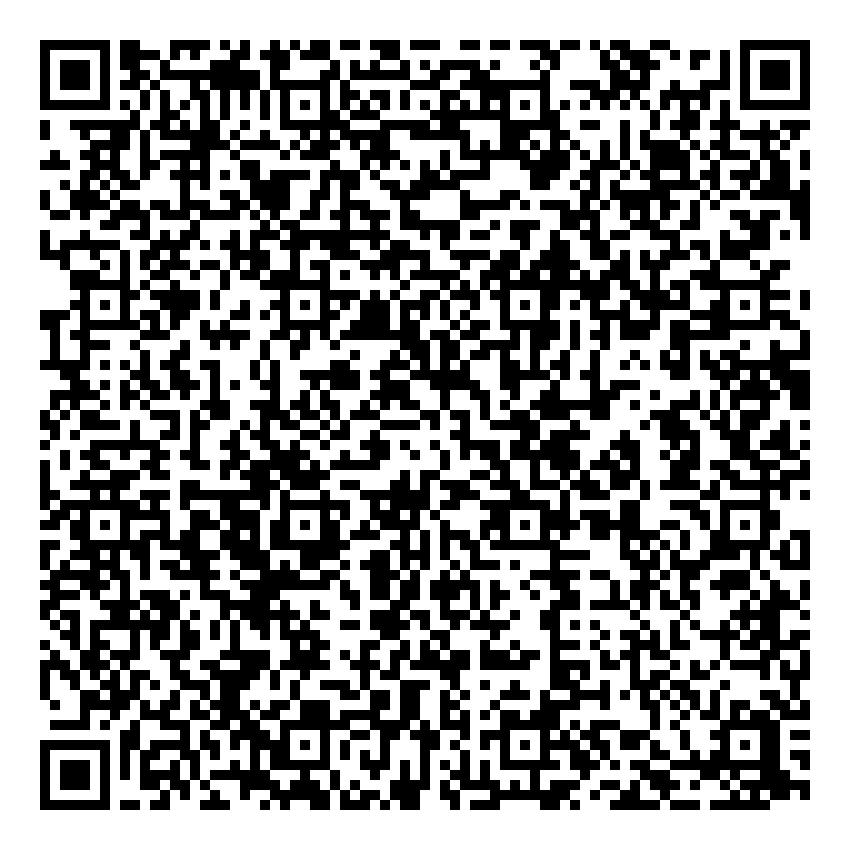
- The phone downloads Orb, checks it's signed by Net Infusion, and finishes setup. Accept the managed-device notice.
- Add your Google account in Settings › Accounts, tap Bring over your stuff on Orb's list (see Moving in), then do steps 5 and 6 above.
Moving in: from an iPhone or another Android phone
On a phone set up from the QR code, Orb's list ends with Bring over your stuff. On Samsung it opens Smart Switch; on other phones it opens this section.
To a Samsung Galaxy (Fold, Flip, S): QR setup is fine
- Tap Bring over your stuff on Orb's list (or open Smart Switch) › Receive data.
- Pick iPhone/iPad or Galaxy/Android. From an iPhone, connect the two phones with a cable (USB-C to Lightning or USB-C to USB-C). The cable route is the one that brings text messages, along with contacts, photos, calendar, call history and more. The iCloud route moves less and leaves texts behind.
- From another Android phone, Smart Switch works over Wi-Fi or a cable.
Smart Switch doesn't move iPhone passwords (Keychain). Export them from the iPhone's Passwords app or move them into a password manager first.
To a Motorola, Pixel or other Android phone from an iPhone: use normal setup, not the QR code
Apple's Transfer to Android (iPhone Settings › General › Transfer or Reset iPhone, iOS 26.3 or newer) and Google's copy step run during the phone's normal first setup, which the QR code replaces. So:
- Set up the new phone the usual way and copy everything from the iPhone when it offers.
- Then install Orb with the Download orb.apk button and the steps at the top of this page.
Already used the QR code? You can still bring the important things over:
- Contacts: on a computer, iCloud.com › Contacts › select all › Export vCard. Open the file on the new phone, and Contacts imports it.
- Photos: privacy.apple.com › Transfer a copy of your data › Google Photos (copies, leaves iCloud as it is), or the Google Photos app on the iPhone.
- Calendar: events in iCloud are the hardest to move after setup; if you have many, use the normal-setup route.
- Texts: there's no built-in way to bring iPhone text history over after setup on these phones, another reason to use normal setup.
From another Android phone, to any phone
Sign in to the same Google account: contacts, calendar, Gmail and Google Photos come back. For texts and call history, use Smart Switch (Samsung) or a texts backup app on the old phone, then restore with it.
Everyone
- WhatsApp, Signal and other chat apps: use each app's own backup or chat transfer.
- Authenticator (two-factor) codes: move them before you wipe or give away the old phone.
Keep your stuff
Most of what's on a phone already lives in your Google or Samsung account and comes back when you sign in again. Check before you reset:
| What | How it comes back |
|---|---|
| Contacts, calendar, Gmail | Synced to your Google account (Samsung: or your Samsung account). Sign in again and they return. Check in Settings › Accounts that sync is on for both. |
| Photos and videos | Google Photos backup, Samsung Cloud / OneDrive gallery sync, or copy them to a computer. |
| Notes | Samsung Notes syncs with your Samsung account; Google Keep with Google. Notes in other apps: check that app. |
| Text messages and call history | Samsung: back up with Smart Switch (to a computer or SD card, or phone to phone) and restore after setup with Smart Switch. Others: a texts backup app that saves to Google Drive, then restore with it after setup. |
| WhatsApp, Signal and other chat apps | Use each app's own chat backup before resetting, and restore when you reinstall it. |
| Two-factor (authenticator) codes | Move these first. Turn on cloud sync in the authenticator app, or transfer the accounts out. Losing them can lock you out of accounts. |
| eSIM | When resetting, choose to keep the eSIM if the phone asks. Otherwise contact your carrier. |
Easiest path: set up your new phone as an Orb phone, then copy everything over from your old phone with Smart Switch (Samsung) or by signing in to the same Google account. Your old phone keeps everything until you're happy.
Updates
Download orb.apk from this page again and install it over the old one. Your settings and key stay. On Samsung (not a QR-set-up phone), turn Auto Blocker off for the install.
Going back
Settings › Apps › Default apps (Samsung: Choose default apps) › Home app › pick your old one, and the same for Digital assistant app. Then uninstall Orb, which deletes its data and your stored key. Phones set up from a QR code need a reset instead.
Privacy
Orb has no accounts and no servers of its own, and doesn't show ads or sell data.
- Stays on your phone: "Hey Orb" listening (no audio is recorded or sent), your notifications, texts, contacts and calendar, which are read on the phone to answer you, and your settings. With voice match on, your voiceprint (a list of numbers made from five "Hey Orb"s, not a recording) stays on the phone and isn't backed up.
- Sent to Anthropic's Claude, with your own key, only when Orb needs it to answer: your request, recent conversation, and the messages or notifications it needs. With app control, the text and buttons of the screen Orb is working on. When you call Orb as the assistant with screen data on, the text of the app on screen (password fields skipped, forgotten after two minutes).
- Weather: your approximate location (about 1 km) goes to Open-Meteo. Speech: your phone's own speech service turns your voice into text. Gmail (optional): read-only, straight from Google.
- Orb never sends a text or email without your spoken or tapped "send".